I really like Hapax for drums, automation, and recording.
As soon as I have to deal with notes(like C, D, A# and so on) it becomes super unintuitive. Up to the point that It’s easier to just record what I play than trying to use the pads to input notes.
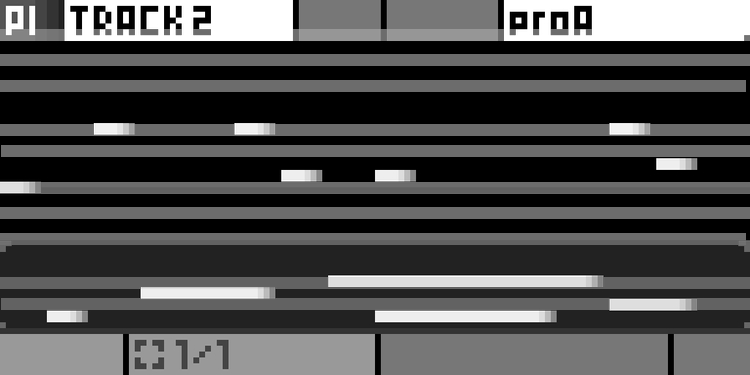
The piano roll is nothing more than random white lines without any information regarding which note the different white lines represents. If there is a jump larger than four semi-notes between two notes I can’t even tell the relationship between them, I simple have no idea.
The pads have colors which I will never memorise so the colors are of no use, they also don’t light up unless I actually place something there. The surface is also not big enough(smaller than one octave) to be used in a consistent way, you never know what note the first row represents.
Am I doing something wrong? Is there a way to use Hapax to edit notes reliably? Should I improve in some way? Should Hapax be improved in some way?
Personally I would prefer any kind of representation of an actual piano in the piano roll, like black key rows being dark gray.
I would also love a reliable way to jump octave up/down in the piano roll view, maybe that already exists?
I don’t have enough music theory to work with actual notes, I look more at intervals in scale mode in the step sequencer. The display is more of a roll to orient myself in a pattern.
You can actually light up the pads with note colors so the time. Take a look at the manual.
When global pScale is enabled, the matrix pads only show the notes of the selected scale. So you usually see one octave, which makes it easier to understand which note is which pad and you cannot enter “wrong” notes. For example, if you only use encoder 2 to switch octaves, you always know where you are.
It would be great if Squarp also provided this view when using the SCALER FX in a pattern.
The bottom row note is shown on the left screen, and you can change octaves with the second encoder or two presses on the up/down arrows (assuming no pScale).
For the most part I use a midi keyboard and play a note to “sound it out” and then I use the note/chord learn functionality, then press the corresponding button to input the note. Either that or I play it live and then adjust the timing/quantizing if needed.
You can also use the note preview but I don’t find it to actually be that useful to workflow so I don’t really rely on that.
If I don’t have a keyboard nearby, then sometimes I use the live keyboard section on the hapax.
The “sound it out” on a midi keyboard and input it on a step method is the same method I used on other hardware sequencers like the octatrack, which used to be my centerpiece, so I find it very comfortable to work that way and I find it really fast and efficient.
It would be great if they had a piano roll view for live and step mode, so that the knowledge transfer is smoother. I’m also on the same boat as op, it’s not intuitive to place notes due to the lack of reference points.
Something like the melodic sequencer mode from the ableton push would be nice, where the pad matrix becomes half isomorphic keyboard and half step sequencer and you simply press one note or a whole chord and add them to the sequence without midi learn and switching between live and step view one note/chord at a time. At the end you simply switch to step mode and see the full sequence with all the notes and you can edit trig conditions or microtiming. On the Hapax you wouldn’t even need to sacrifice half of the isomorphic keyboard, just 1 or 2 rows for 16 to 32 steps would be amazing already.
The same way that they highlight the first row in pScale mode (at least for 7 note keys), they could highlight it like a piano roll so that every accidental (sharp/flat) is litten up.
My problem is not only to enter notes. Worst case I can enter notes with an actual keyboard, those have very good visual representation.
After input, however, Hapax does not give me any good visual representation of the notes. So editing becomes a chore. The piano roll lacks the actual ‘piano’ part and the pads are only colors which are only visible when a note is placed on that specific row.
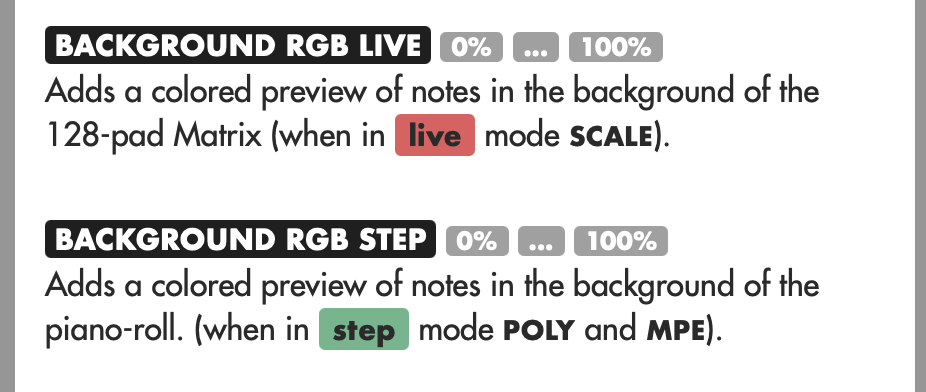
You can set the background color amount on pads in step and/or live mode though (default is 0%). And you could also change the color scheme to give specific colors to black vs white keys.
Some visual information on the screen would be nice but things get very squished depending on how much range needs to be shown.
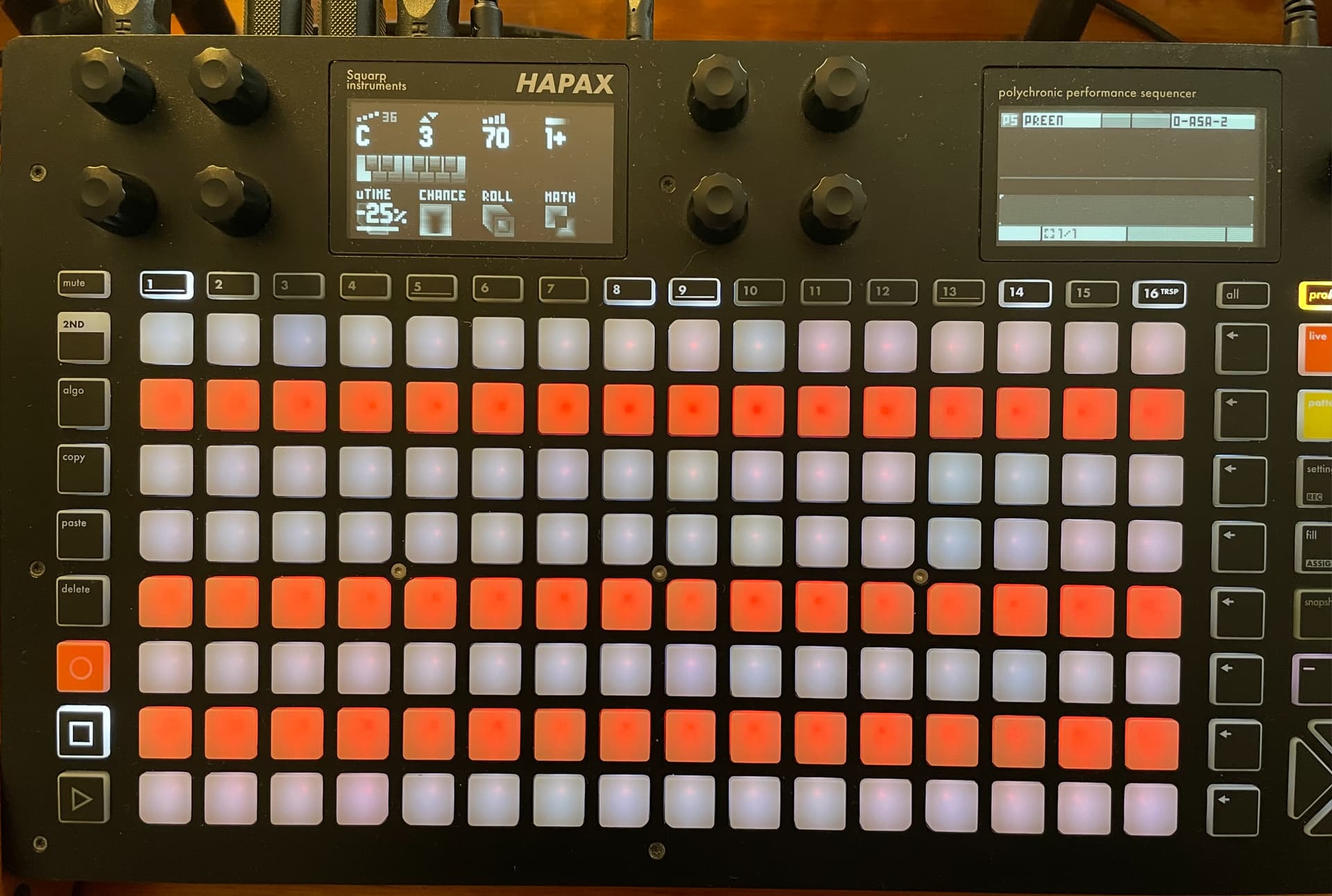
Here’s what that looks like, using white for white keys, red for black keys, and dialing up BACKGROUND RGB STEP…seems like a good solution considering:
The pads have colors which I will never memorise so the colors are of no use
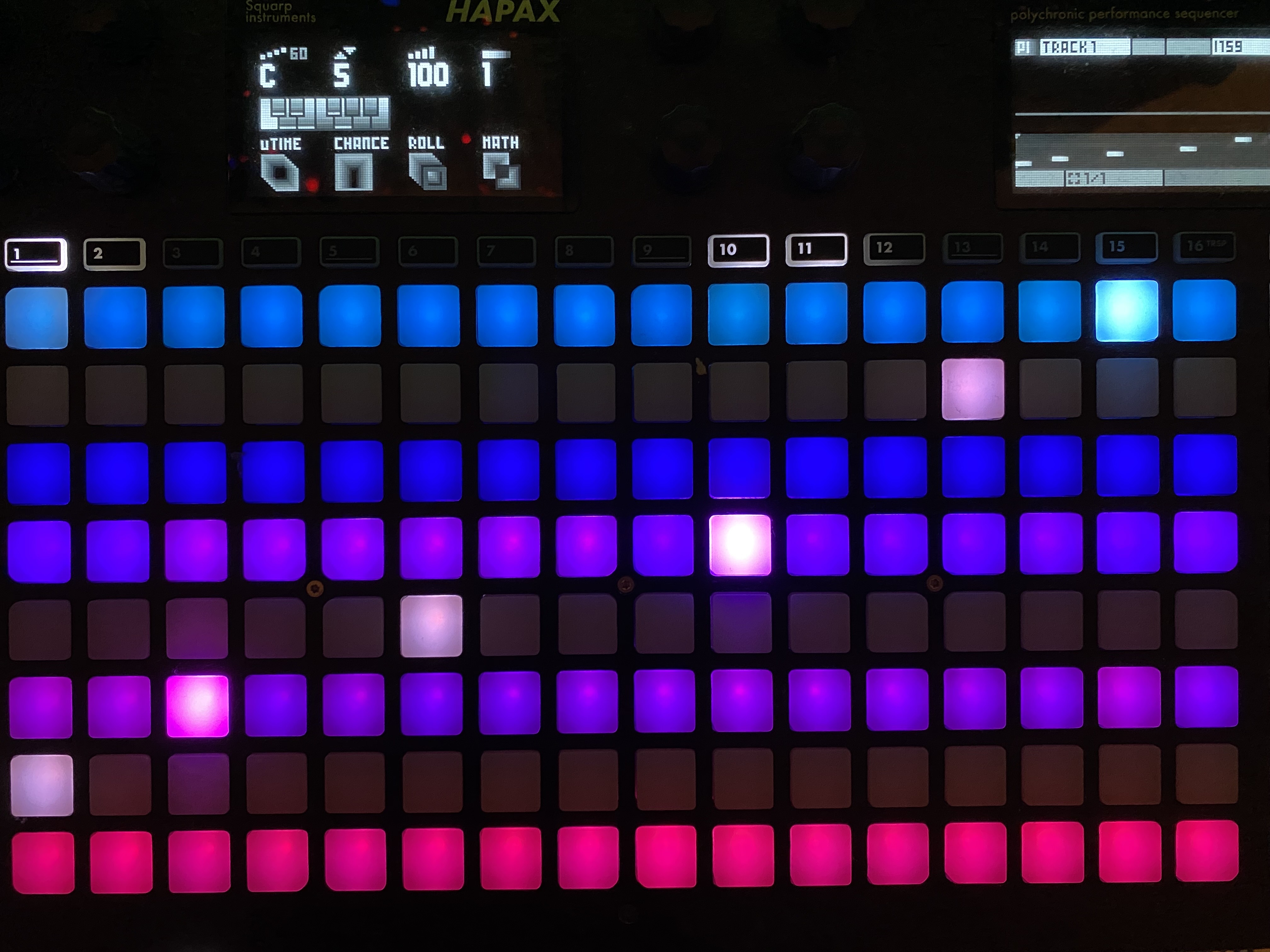
I’ve decided to go with a reduced/gradient colour palette and black for black keys. It took some trial and error to get the brightness right. Goes from pink for C to cyan for B.
This works partially, but then you’ll have trouble if you’re using pScale mode on different tracks, because the coloring will have no meaning.
They need to implement something extra to address this, something like a view which you can choose to activate in Step/Live modes. Anything else is unfortunately an imperfect workaround.
I would love to hear if this thread is still active. Also to have the feeling this will ever be on the feature list as firmware update.
Having the screen not show the “actual” piano roll is a huge miss for me. Without it I have no clear perception of chords when looking at the screen. The Pyramid had it…
Besides Push, it’s like that on the Akai Force too.
Pressing both live+step buttons to enter this new layout would be an intuitive key combo, and I’d put somewhere a way to choose how many rows of sequencer you want displayed over the iso keyboard, ideally per track so to save them as templates.
That would be really a workflow booster!
It would be totally awesome to have also the ability to swtich to chord mode, and in that case it would make sense to have the sequencer rows predetermined for chord modifiers layout consistency