Unfortunately the initial euphoria with Loopy Pro and the Hapax was over very quickly. Latency and stability problems forced me to give up. So I gave Logic Pro another chance and the current version is incredibly usable. I have to say it is almost perfect and very performant. My findings
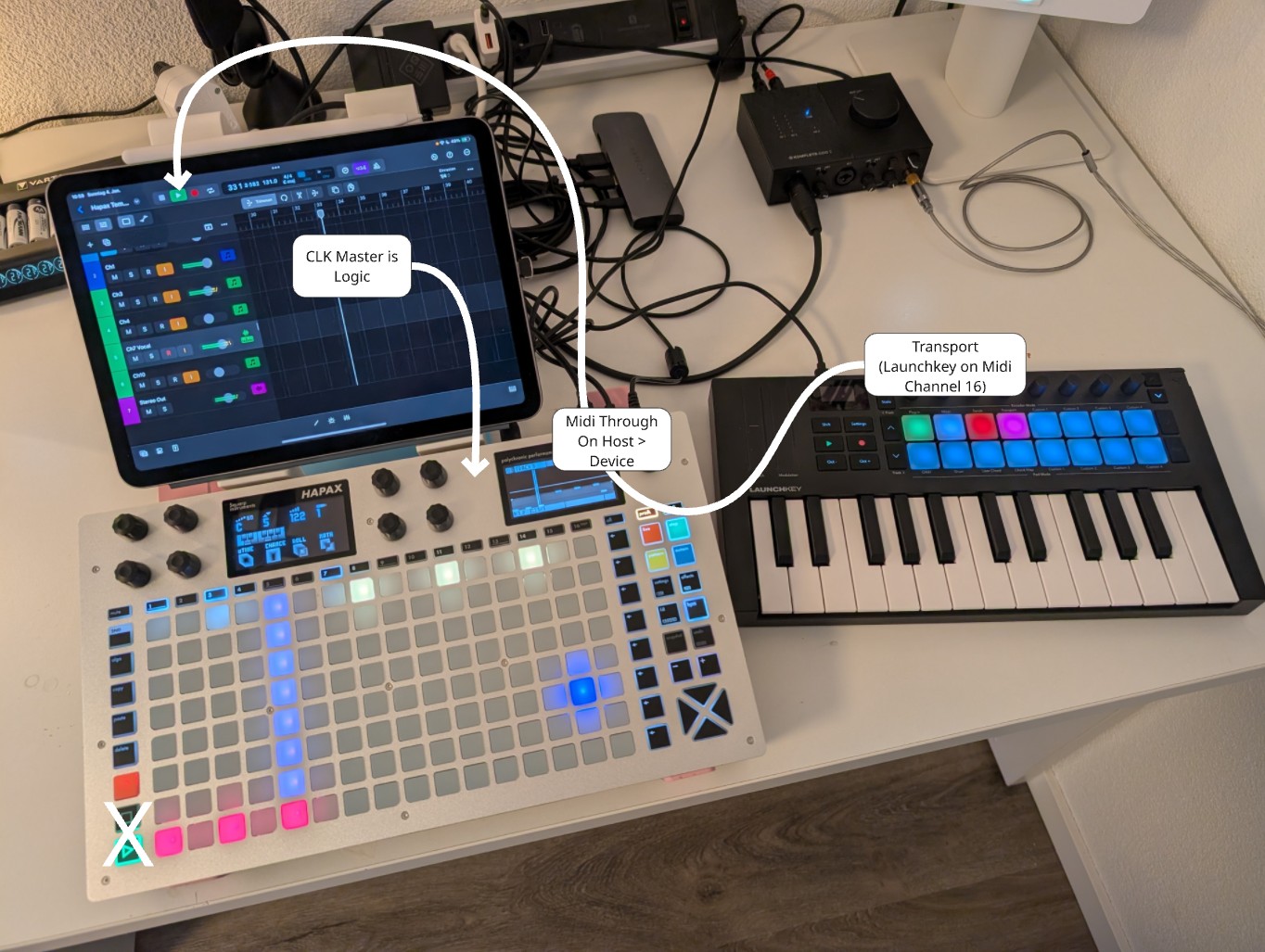
- Connect the Hapax to the iPad via a USB hub with power through.
- Connect an external keyboard or controller to the Hapax, which can take over transport controls. In my case I’m using the pads of a Launchkey for transport (because the Hapax transport buttons are not very useful anymore because of clock settings, see later on)
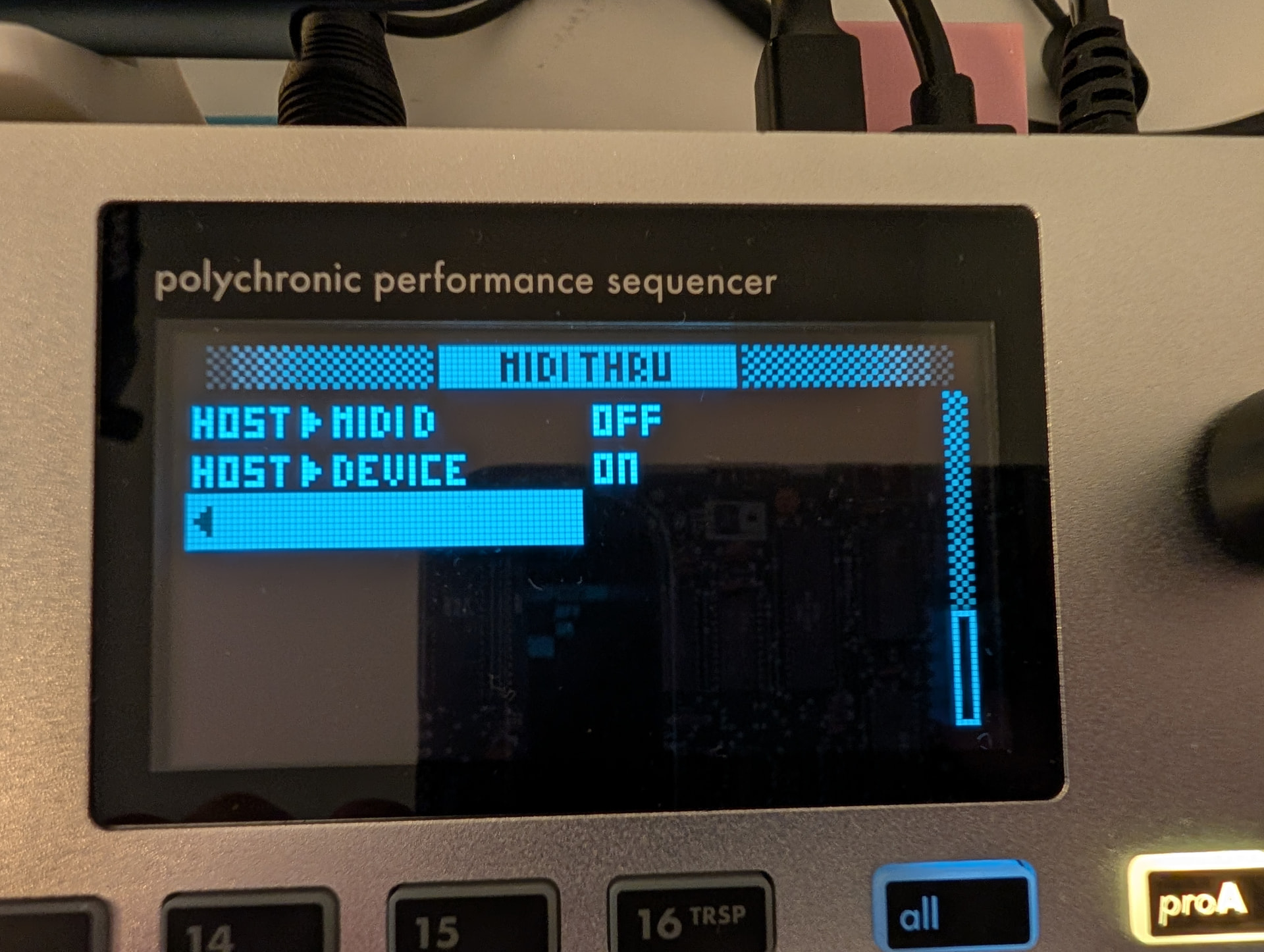
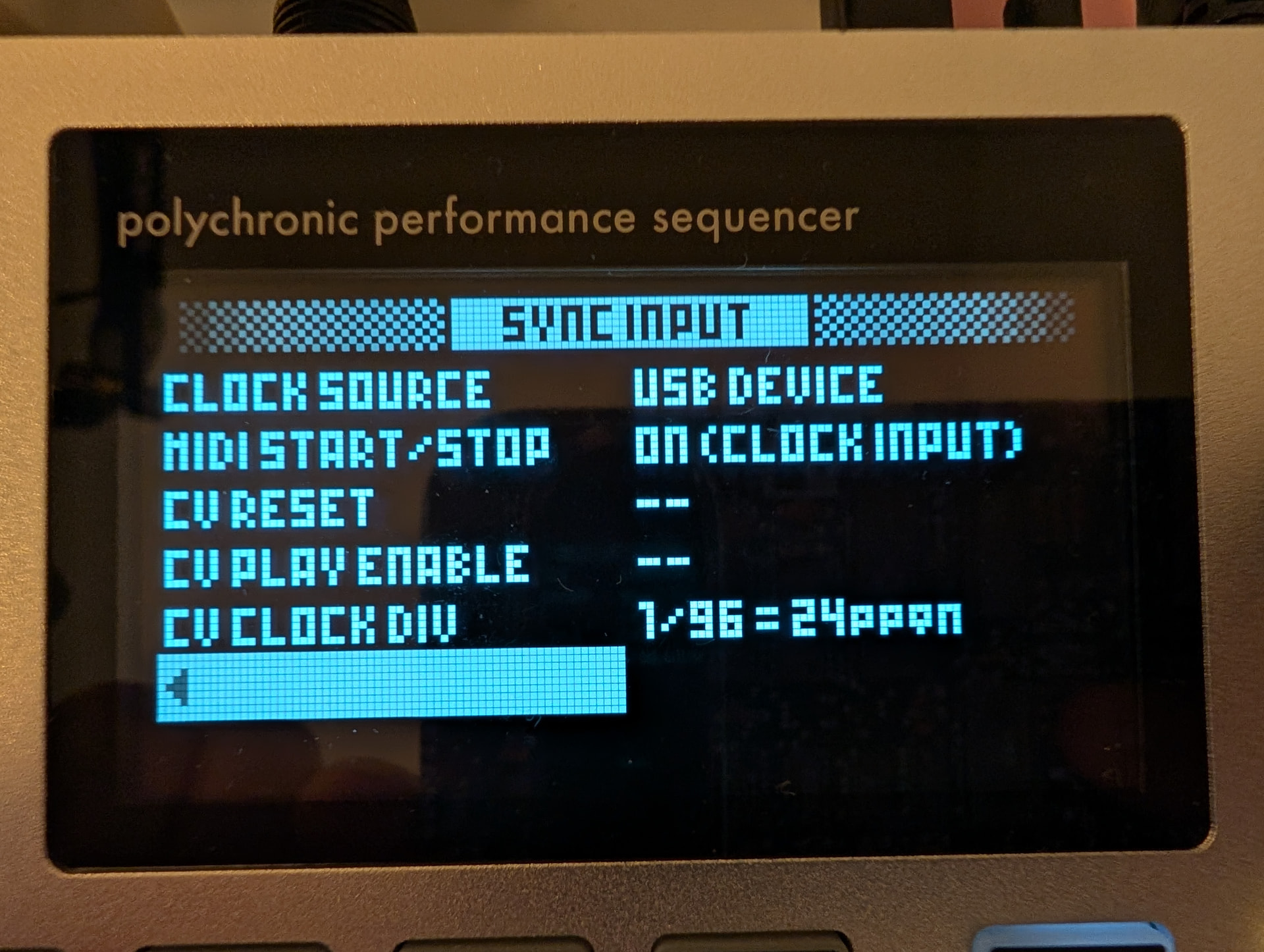
- Because Logic Pro only supports Ableton Link as a synchronization method it is necessary that it is the clock master and the Hapax receives the clock from USB Device with transport start on clock. The Hapax start and stop buttons still work (as long as you startet Logic transport first you can stop and start with hapax controls) but some effects LFOs and so on do not start at the correct position. See the Hapax screenshots. Not on the screenshots: On Midi In settings choose “ignore” for CC Messages.
- In the Logic Pro track settings assign the Hapax as the MIDI source for each track with the corresponding channel. Configure the tracks in Hapax to USB Device with this number.
- Set the track to monitor and enable the track header information with the i button.
- Set the external keyboard to MIDI channel 16. This way regardless of which track is selected the parameters that are used globally in Logic always come through on channel 16.
- Now you can learn the controllers and pads of the external keyboard in Logic Pro (for transport and more) even if it is connected via the Hapax. When learning always choose a Hapax track that does not send USB Device data otherwise it mixes with the MIDI thru signals of the keyboard and everything turns into a mess.
I have been using this setup for a while now and it is really fantastic how usable. I can absolutely recommend it. And the 50 dollars for one year of Logic are in my opinion justified even though I really hate those subscription models.